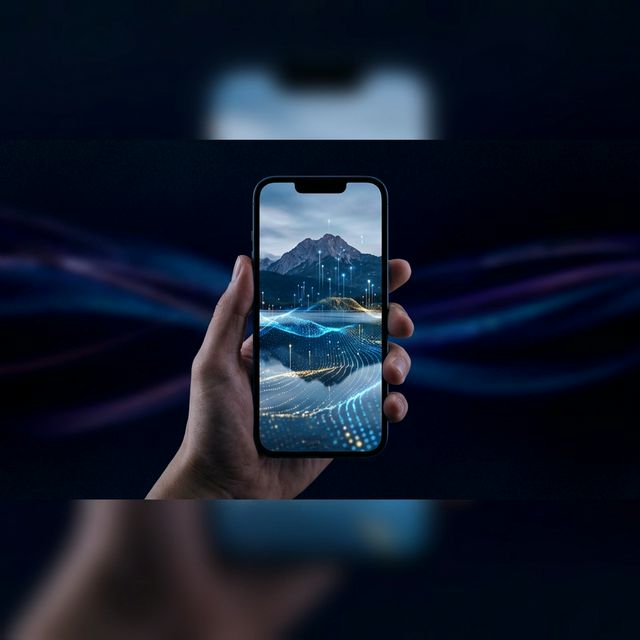
Static wallpapers are a thing of the past. With AI image-to-video technology reaching mainstream availability in 2026, anyone can now transform a favorite photo into a cinematic, living background — no video editing experience required.
This guide walks you through the entire process of creating AI animated wallpapers, from choosing the right source image to setting it as your desktop or lock screen background.
What Is an AI Animated Wallpaper?
An AI animated wallpaper (also called a live wallpaper or dynamic wallpaper) is a short, looping video clip used as a desktop or mobile background. Unlike GIFs, they play as full-resolution video with smooth motion and no color degradation.
The key innovation in 2026 is AI image-to-video generation — models that can analyze a single static image and synthesize natural-looking motion: clouds drifting, water rippling, fire dancing, or abstract shapes pulsing with energy.
The difference from traditional live wallpapers: Older live wallpapers required shooting video or using pre-made clips. AI lets you animate any image — your own photos, AI-generated art, anime screenshots, or architectural renders.
Why AI Animated Wallpapers Are Worth It
Before diving in, here's why this trend has exploded:
- Personalization — Your lock screen or desktop reflects your identity, not a stock photo
- Depth and life — A landscape wallpaper that breathes feels dramatically different from its static version
- Conversation starter — A well-animated live wallpaper draws compliments on any device
- Affordable — Tools like VisionAI make it accessible without a video production budget
The technical barrier used to be significant. Not anymore.
Step 1: Choose the Right Source Image
The quality of your animated wallpaper depends heavily on the input. Some images animate far better than others.
Images that work best
- Landscapes with sky, water, or fire — Natural elements that have inherent motion cues animate convincingly
- Abstract or AI-generated art — Geometric and fluid designs respond well to AI motion synthesis
- Portraits with depth — Bokeh-heavy portraits get subtle, elegant animation (hair movement, light shift)
- Architecture at night — City lights, neon signs, and window glow animate beautifully
Images to avoid
- Flat graphic logos (animated logos rarely look natural)
- Heavy text overlays (text distorts during AI animation)
- Very dark images (AI struggles to find motion cues in near-black areas)
- Screenshots of interfaces (animation creates uncanny artifacts)
The sweet spot is a high-quality image with clear foreground/background separation and natural subjects. A mountain photo at 1920×1080 or higher is ideal.
Step 2: Upload to VisionAI
Head to the VisionAI live wallpaper maker and create an account if you haven't already.
Once logged in:
- Click "Create Live Wallpaper" from the dashboard
- Choose your orientation:
- Portrait (9:16) — for phone lock screens and Android home screens
- Landscape (16:9) — for desktop and tablet backgrounds
- Upload your image by dragging and dropping or clicking to browse — JPG and PNG are supported
- VisionAI automatically crops and optimizes your image to fit the selected ratio
Your image is ready to animate.
Step 3: Configure Animation Settings
VisionAI's creation form has two parameters to configure before generating:
Visual Prompt (Optional)
A text field where you describe the motion you want to see. If left blank, VisionAI applies an optimized default prompt tuned for seamless wallpaper animation.
Examples of effective prompts:
- "Clouds drifting slowly across the sky, gentle wind moving through the trees"
- "Water rippling softly, light reflections shimmering on the surface"
- "Particles floating upward, slow and hypnotic"
Prompts work best when they describe continuous, natural motion rather than scene cuts or dramatic transformations.
Duration
Two options:
- 5 seconds — 1 credit. Recommended for most wallpapers: the loop is snappy, the file is smaller, and the transition point is harder to notice.
- 10 seconds — 2 credits. Better for cinematic, slow-moving effects where a longer loop feels more natural.
Also available: Loop workflow — VisionAI offers a dedicated Loop workflow that creates two joined 5-second clips for a perfectly seamless back-to-back transition. This costs 2 credits and is ideal when you want the loop point to be completely invisible.
Step 4: Generate and Preview
Hit Generate. Depending on server load, generation typically takes 30–90 seconds. You'll see a real-time progress indicator.
Once complete, you get a live preview right in the browser. Watch it loop several times and pay attention to:
- The loop point — Does it jump or blend seamlessly?
- Distortion artifacts — AI occasionally creates warping around sharp edges; if visible, try adjusting your prompt to emphasize subtler motion, or regenerate
- Motion area — Is the motion focused on the right parts of the image?
If you're not happy, click Regenerate — you can try again with adjusted settings. Each generation consumes one credit.
Step 5: Download, Upscale, and Set as Wallpaper
Download your animated wallpaper as an MP4 file (universally compatible).
Optional: Upscale to 4K
Your generated wallpaper is produced at 1080p HD. If you need 4K for a high-resolution display or flagship Android device, VisionAI offers a dedicated Upscale to 4K workflow. Select your completed video from the dashboard and launch the upscale — it costs 2 credits and delivers a crisp 2160p output with no re-generation required.
Setting it as your macOS wallpaper
macOS doesn't natively play MP4 files as wallpapers. You need a third-party tool:
- LiveWallpaperMacOS — open-source, works on M1/M2/M3/M4 Macs
- Wallpaper Engine for Mac — paid, feature-rich
Setting it on Windows
Windows 11 natively supports video wallpapers through Lively Wallpaper (free on Microsoft Store) or Wallpaper Engine (Steam, ~$4).
Setting it on Android
Android supports live wallpapers natively. The easiest way is to use the VisionAI Android app — it handles the entire workflow directly on your phone, from image upload to setting the live wallpaper, with no extra steps required. See our dedicated guide: How to Set a Live Wallpaper on Android with VisionAI.
Setting it on iOS
iOS 16+ supports Live Photos and depth wallpapers. Convert your MP4 to Live Photo format using InShot or a similar app, then set it from Photos.
Tips for Better Results
After testing hundreds of images, these are the patterns that consistently produce the best animated wallpapers:
Shoot in golden hour: Images with warm, directional light animate with gorgeous light drift effects.
High contrast works better than HDR: Extremely HDR images (compressed highlights and shadows) can confuse AI motion detection. A naturally exposed image usually produces cleaner animation.
Abstract gradients are surprisingly great: A simple gradient image with subtle texture will produce hypnotic, fluid animation that works perfectly behind dark-mode apps.
Regenerate at least twice: The AI has randomness in its generation. If the first result isn't perfect, try again — the second or third attempt often looks significantly better.
Use the Loop workflow for maximum seamlessness: The dedicated Loop workflow joins two clips end-to-end, making the transition point completely invisible. Use it when the standard animation has a noticeable cut at the loop point.
Frequently Asked Questions
How much does it cost to create an AI animated wallpaper? On the VisionAI Android app, browsing and discovering wallpapers in the Marketplace is free. Purchasing a wallpaper from the Marketplace is a one-time payment per wallpaper. Creating your own animated wallpaper using the AI engine requires credits, purchased separately — a 5-second animation costs 1 credit, a 10-second animation costs 2 credits, and upscaling to 4K costs 2 credits.
What video format should I use for my wallpaper? MP4 with H.264 encoding is the most compatible. For Apple devices, HEVC (H.265) gives better quality at smaller file sizes.
Can I sell or share AI animated wallpapers I create? Check the terms of the image you started with. If you own the original image (your photo, or a properly licensed AI-generated image), you own the animated output. If you used someone else's photo without permission, commercial use may infringe their rights.
Why does my animated wallpaper look distorted? Distortion artifacts typically appear when the AI applies too much motion to structured areas (buildings, faces, text). Try adjusting your prompt to describe slower, subtler motion, or use a source image with more organic, unstructured content. Regenerating often produces a cleaner result.
Does the animation drain my battery? Animated wallpapers do use GPU resources. Most modern tools pause playback when on battery or when a window is maximized. On modern Android flagships and M-series MacBooks, the impact is negligible during normal use.
Create Your First Live Wallpaper
Transform any image into a stunning animated live wallpaper in seconds — no design skills required.
Get started