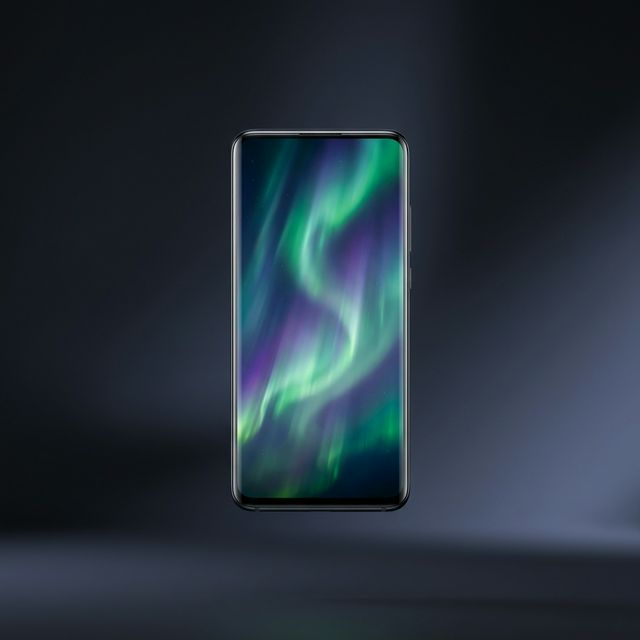
Android has supported live wallpapers since Android 2.1 — but for years, the options were limited to pre-installed animations or low-quality third-party packs. With AI image-to-video technology, that has completely changed. You can now animate any photo you own into a seamless, looping live wallpaper that plays directly on your home screen and lock screen.
VisionAI is the Android app built specifically for this workflow. Available on Google Play, it handles the entire pipeline: upload an image, generate the animation, set it as your live wallpaper — all from your phone. You can also make a live wallpaper from your browser and download the result to your phone.
What Is the VisionAI Android App?
The VisionAI app is a purpose-built Android application for creating AI-animated live wallpapers. It uses state-of-the-art image-to-video diffusion models to synthesize natural motion from any still image: clouds drifting across a landscape, water rippling, fire dancing, or abstract gradients pulsing with depth.
Key features
- AI image-to-video animation — Turn any photo into a seamless live wallpaper
- Cloud-based AI generation — Powered by VisionAI's servers, no powerful hardware required on your device
- Direct live wallpaper setting — Apply your creation without leaving the app
- Marketplace access — Browse wallpapers for free, purchase community-created animated wallpapers
- 4K upscale — Upscale your HD wallpaper to 4K for the sharpest Android displays
- Loop workflow — Create a perfectly seamless back-to-back loop that hides the transition point completely
System Requirements
- Android 8.0 (Oreo) or later
- At least 1GB of free storage
- Active internet connection for AI generation
Step 1: Download VisionAI from Google Play
Open the Google Play Store on your Android device and search for VisionAI, or tap the link below:
Download VisionAI on Google Play
Install the app and open it. You will be prompted to create an account or sign in — this is required to access the AI generation features.
Step 2: Choose Your Source Image
The quality of your animated wallpaper depends heavily on the source image. Some images animate far better than others.
Images that work best
- Landscapes with sky, water, or fire — Natural elements with inherent motion cues animate convincingly
- Abstract or AI-generated art — Geometric and fluid designs respond well to motion synthesis
- Portraits with depth — Bokeh-heavy portraits animate with elegant subtlety (hair movement, soft light drift)
- Architecture at night — City lights, neon signs, and window glow come alive
Images to avoid
- Flat graphic logos (rarely look natural in motion)
- Heavy text overlays (text distorts during AI animation)
- Very dark or underexposed images (AI struggles with near-black areas)
- Screenshots of interfaces (creates uncanny artifacts)
The sweet spot is a high-quality image with clear foreground/background separation. A landscape or nature photo at 1080p or higher is ideal.
Step 3: Upload and Configure the Animation
From the VisionAI dashboard, tap "Create Live Wallpaper". First choose your orientation:
- Portrait (9:16) — for Android home screens and lock screens
- Landscape (16:9) — for tablet or desktop backgrounds
Then select your image from your gallery or camera roll — JPG and PNG are supported. VisionAI automatically crops and optimizes it to fit the selected ratio.
Once uploaded, configure the two animation parameters:
Visual Prompt (Optional)
Describe the motion you want to see. Leave it blank and VisionAI uses an optimized default prompt tuned for seamless wallpaper animation.
Examples:
- "Clouds drifting slowly, wind moving gently through the trees"
- "Water rippling softly, light reflections shimmering"
- "Particles floating upward, slow and hypnotic"
Describe continuous, natural motion — not scene cuts or dramatic transformations.
Duration
- 5 seconds — 1 credit. Best for most wallpapers: snappy loop, smaller file, less noticeable transition.
- 10 seconds — 2 credits. Better for cinematic, slow-moving effects where a longer loop feels more natural.
Also available: Loop workflow — A dedicated Loop workflow creates two joined 5-second clips for a perfectly seamless transition. This costs 2 credits and is the best choice when you want the loop point to be completely invisible.
Step 4: Generate and Preview
Tap Generate. Depending on server load, generation typically takes 30–90 seconds. A real-time progress indicator shows the status.
Once complete, you get a live preview directly in the app. Let it loop several times and check:
- The loop point — Does it jump, or blend seamlessly?
- Distortion artifacts — AI occasionally warps sharp edges; if visible, adjust your prompt to describe slower, subtler motion, or simply regenerate
- Motion area — Is the animation focused on the right part of the image?
If you're not satisfied, tap Regenerate with adjusted settings. Each generation uses 1 or 2 credits depending on the duration selected.
Step 5: Upscale to 4K (Optional)
Your generated wallpaper is produced at 1080p HD. If you have a high-resolution flagship device and want maximum sharpness, VisionAI's Upscale to 4K workflow scales it up to 2160p. Select your completed video from the dashboard and launch the upscale — it costs 2 credits.
Step 6: Set as Live Wallpaper
When you're happy with the result, tap "Set as Live Wallpaper". VisionAI handles the technical steps automatically:
- It packages your animation as an Android live wallpaper
- Your device's wallpaper picker opens with VisionAI pre-selected
- Choose whether to apply to Home screen, Lock screen, or Both
- Tap Set Wallpaper to confirm
Your animated wallpaper is now live. Go to your home screen and see it in motion.
Tips for a Great Live Wallpaper
Shoot in golden hour: Images with warm, directional light animate with gorgeous light drift effects.
Use portrait-oriented images: Android home screens are portrait. Landscape photos will be cropped or letterboxed — portrait compositions fill the screen completely.
Dark backgrounds complement your UI: Apps and widgets look cleaner over dark wallpapers. A dark ocean or night-sky animation is easier to read notifications against than a bright daytime scene.
Regenerate at least twice: The AI has randomness built in. If the first result isn't perfect, try again — the second or third attempt often looks significantly better.
Use the Loop workflow for maximum seamlessness: The dedicated Loop workflow joins two clips end-to-end, making the transition point completely invisible. Use it when the standard animation has a noticeable cut at the loop point.
Troubleshooting
Live wallpaper uses too much battery Android live wallpapers do use GPU resources. Modern Android devices (Android 10+) are well-optimized for this, but if battery drain is a concern, choose a 5-second duration instead of 10 seconds, or set the live wallpaper only on the lock screen and use a static wallpaper on the home screen.
Wallpaper looks pixelated For the sharpest result on a high-resolution device, use the Upscale to 4K workflow after generation (2 credits). The generated 1080p video is upscaled to 2160p with no re-generation needed.
Animation looks choppy This usually happens when the device's GPU is under load from other apps. Close background applications and try again. On lower-end devices, a 5-second loop is lighter to render than a 10-second one.
App crashes during generation Ensure you have a stable internet connection. Large image files (over 15MB) may cause timeouts — compress the image before uploading if needed.
VisionAI vs Other Android Live Wallpaper Methods
| Method | Custom content | AI animation | Ease of use | Quality |
|---|---|---|---|---|
| VisionAI App | Yes | Yes | Very easy | Excellent |
| Video Live Wallpaper apps | Yes (video only) | No | Easy | Depends on video |
| Pre-installed Android wallpapers | No | Limited | Very easy | Good |
| Wallpaper Engine (Android) | Yes | No | Medium | Good |
VisionAI is the only Android solution that takes you from a single photo to a professional animated live wallpaper — with no video editing skill required.
Next Steps
Now that your live wallpaper is running, here's how to take it further:
- Browse pre-made animated wallpapers in the VisionAI Marketplace — community-created, sold as single purchases
- Learn what images animate best: How to Create AI Animated Wallpapers from Any Image
- Compare AI wallpaper tools: Best AI Wallpaper Generators in 2026
A well-chosen animated wallpaper transforms how your phone feels in your hand. With VisionAI, the best wallpaper you'll ever have is already in your photo gallery — it just needs to come alive.
Get VisionAI on Android
Create AI-animated live wallpapers directly from your phone — upload, generate, and set your wallpaper without leaving the app.