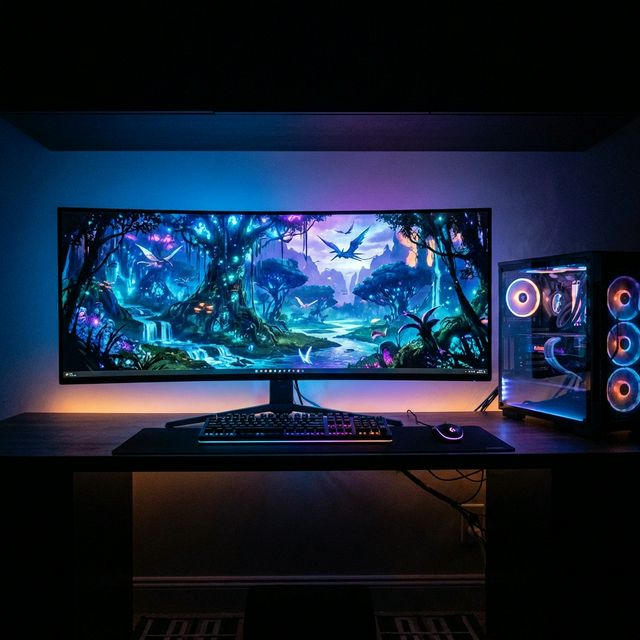
Windows 11 doesn't natively support video wallpapers — you can't simply right-click an MP4 and set it as your desktop background. But with the right combination of tools, you can have a stunning AI-animated wallpaper running on your Windows desktop in under ten minutes.
This guide covers the complete workflow: generating a personalized animated wallpaper with VisionAI, then setting it on Windows 11 using a free tool.
What You Need
- VisionAI — to generate the animated wallpaper from your image (visionai.to)
- Lively Wallpaper — a free, open-source application to set any video as your Windows desktop wallpaper (available on the Microsoft Store)
Alternatively, you can use Wallpaper Engine (available on Steam, paid) instead of Lively Wallpaper. Both work well; Lively Wallpaper is the free option.
Step 1: Create Your Animated Wallpaper with VisionAI
Open the VisionAI animated wallpaper maker and sign in. Click "Create Live Wallpaper" from the dashboard.
Choose your orientation:
- Landscape (16:9) — correct for a standard desktop or laptop screen
- Portrait (9:16) — only use this for a vertically oriented secondary monitor
Upload your source image in JPG or PNG format. VisionAI automatically crops and optimizes it for the selected ratio.
Configure the animation:
-
Visual Prompt (optional) — describe the motion you want. Examples:
- "Clouds drifting slowly across the sky, light shifting on the landscape"
- "Water rippling softly, light reflections shimmering on the surface"
- "Particles floating upward, slow and hypnotic"
-
Duration:
- 5 seconds (1 credit) — snappy, clean loop
- 10 seconds (2 credits) — better for slow, cinematic motion
Click Generate and wait 30–90 seconds. Preview the result and regenerate if needed.
Optional: Upscale to 4K
If you have a 4K monitor, use the Upscale to 4K workflow after generation (2 credits) to scale your 1080p output to a crisp 2160p. On a 4K display, the difference is clearly visible.
Download your wallpaper as an MP4 file.
Credit pricing: 3 credits for $9.99 — 10 credits for $19.99 — 30 credits for $39.99 — 80 credits for $79.99. Credits don't expire.
Step 2: Install Lively Wallpaper
Open the Microsoft Store on Windows 11 and search for Lively Wallpaper. It's free and open source.
Install it and open it. Lively Wallpaper runs in the system tray once installed.
Step 3: Set Your Animated Wallpaper
With Lively Wallpaper open:
- Click the "+" button (Add Wallpaper) in the top-left
- Select "From file" and browse to your downloaded MP4
- Lively Wallpaper will preview the video — confirm it looks correct
- Click "Set Wallpaper"
Your animated wallpaper is now running on your Windows 11 desktop. It loops automatically.
Multiple monitors
If you have multiple monitors, Lively Wallpaper lets you assign different wallpapers to each screen. Open the Lively settings and select which monitor to apply the wallpaper to — you can run different animated wallpapers on each display simultaneously.
Using Wallpaper Engine Instead of Lively
If you already own Wallpaper Engine on Steam, you can use it to play your VisionAI-generated MP4:
- Open Wallpaper Engine
- Click "Open Wallpaper" from the main interface
- Browse to your downloaded MP4 and select it
- Wallpaper Engine will add it to your local library and set it as your wallpaper
Wallpaper Engine offers more performance tuning options (pause when gaming, quality scaling, frame rate cap) which can be useful on gaming PCs.
Performance Considerations
Animated wallpapers use your GPU to render. On most modern systems this is negligible, but there are things worth knowing:
For gaming: Both Lively Wallpaper and Wallpaper Engine automatically pause the animated wallpaper when a full-screen application is running. Your gaming performance is not affected when you're in-game.
For battery life on laptops: Lively Wallpaper has a built-in option to pause playback when running on battery. Enable this in Lively Settings → Performance → "Pause when on battery power" to prevent unnecessary battery drain.
For older hardware: A looping 1080p MP4 at 24fps is a very light load for any GPU made in the last several years. If your machine struggles, use a 5-second loop rather than 10 seconds.
Tips for Desktop Wallpapers
Landscape (16:9) is the correct ratio: This matches standard monitors. Don't use the 9:16 portrait format for a desktop wallpaper — it will be letterboxed with black bars.
Dark wallpapers work better with desktop icons: Light or high-contrast wallpapers make icon labels hard to read. A darker animated wallpaper lets your desktop icons stay readable.
Loop workflow for the cleanest experience: The Loop workflow in VisionAI (2 credits) joins two clips end-to-end for a seamless, invisible transition. On a desktop you look at for hours, a clean loop makes a significant difference.
4K is worth it on 4K monitors: The standard 1080p generation is fine for 1080p or 1440p displays. On a 4K monitor, the Upscale to 4K option (2 credits) produces a noticeably sharper result.
Frequently Asked Questions
Does Windows 11 support video wallpapers natively? No. Windows 11 requires a third-party application like Lively Wallpaper (free) or Wallpaper Engine (paid, Steam) to set video files as desktop backgrounds.
Will animated wallpapers cause lag or slow down my PC? For modern systems (last 5 years), no — a looping MP4 video is minimal GPU work. Both Lively Wallpaper and Wallpaper Engine pause automatically during full-screen applications.
Can I use the same wallpaper on both Windows and Android? Yes. Download the wallpaper as MP4 from VisionAI. Use Lively Wallpaper on Windows and the VisionAI Android app on your phone — the same content works on both platforms.
What if my wallpaper has a noticeable loop point? Regenerate using VisionAI's Loop workflow (2 credits). This creates a perfectly seamless loop where the transition point is invisible.
See also:
- How to Create AI Animated Wallpapers from Any Image
- VisionAI vs Wallpaper Engine: Which Is Right for You?
- Best AI Wallpaper Generators in 2026
Create Your First Live Wallpaper
Transform any image into a stunning animated live wallpaper in seconds — no design skills required.
Get started