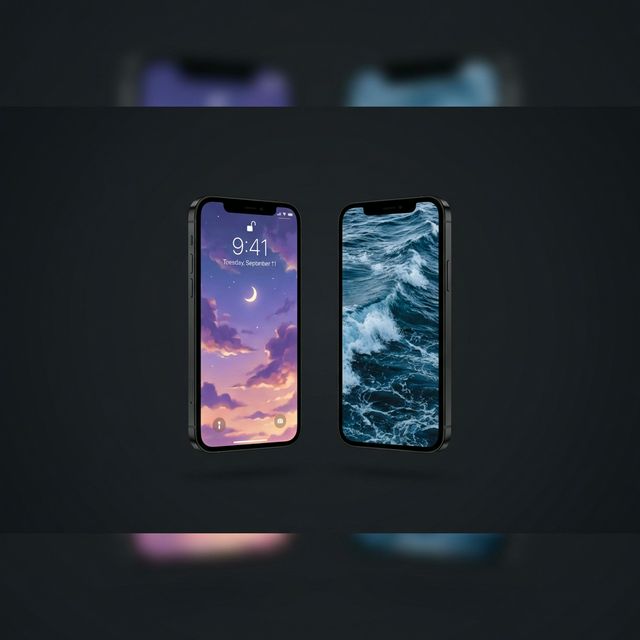
iOS has supported Live Photos as wallpapers since iOS 9 — but creating truly custom, AI-animated live wallpapers on iPhone requires a specific workflow. With VisionAI generating the animated content and a conversion step to make it iOS-compatible, you can have a personalized animated wallpaper on your iPhone lock screen.
This guide covers the complete process for 2026.
How iOS Live Wallpapers Work
iOS supports animated wallpapers through the Live Photo format. A Live Photo is a still image paired with a short video clip — when you press and hold the wallpaper on the lock screen, it plays.
Starting with iOS 16, Apple also added support for video wallpapers on the lock screen, allowing short looping video clips as lock screen backgrounds on supported devices.
The two methods covered in this guide:
- Convert your animated wallpaper to Live Photo format (works on all iPhone models with iOS 11+)
- Set a video directly as your lock screen wallpaper (iOS 16+ on iPhone 14 and later)
Step 1: Generate Your Animated Wallpaper with VisionAI
Open the VisionAI live wallpaper maker and sign in. Click "Create Live Wallpaper" from the dashboard.
For iPhone, always choose Portrait (9:16) — this matches the iPhone screen ratio perfectly.
Upload your source image in JPG or PNG format. Write an optional motion prompt describing what you want to see move, then choose your duration:
- 5 seconds (1 credit) — recommended for Live Photo format (Live Photos loop a short clip)
- 10 seconds (2 credits) — better if you plan to use the video wallpaper method on iOS 16+
Click Generate. Once complete, preview the result and regenerate if needed. Then download the MP4.
Credit pricing: credits come in packs, with current prices on the pricing page (in your local currency in the Android app). Credits don't expire.
Optional: Upscale to 4K
For iPhone 15 Pro, iPhone 16 Pro, and other ProMotion OLED devices, the Upscale to 4K workflow (2 credits) produces a visibly sharper 2160p result.
Method 1: Convert to Live Photo (All iPhone Models, iOS 11+)
This method converts your MP4 to Live Photo format using a free app, then sets it as your wallpaper from the Settings app.
What you need
A free app capable of converting MP4 to Live Photo format, available on the App Store. Apps like InShot include a Live Photo export feature. Search "MP4 to Live Photo" in the App Store to find current options.
Steps
-
Transfer your MP4 to your iPhone — AirDrop it from your Mac, use iCloud Drive, or download it directly in Safari from visionai.to on your phone.
-
Open the converter app and import the MP4.
-
Export as Live Photo — find the export option and select "Save as Live Photo". The Live Photo is saved to your camera roll.
-
Go to Settings → Wallpaper → Add New Wallpaper
-
Select Live Photo from the categories at the top.
-
Choose your newly created Live Photo and position it as desired.
-
Tap "Add" and select whether to set it on the Lock Screen, Home Screen, or both.
Your animated wallpaper will play when you press and hold the lock screen.
Method 2: Video Wallpaper on Lock Screen (iOS 16+, iPhone 14 and later)
iOS 16 introduced the ability to use short video clips directly as lock screen wallpapers on newer iPhone models.
Requirements
- iPhone 14 or later
- iOS 16 or later
Steps
-
Transfer your MP4 to your iPhone and make sure it appears in the Photos app.
-
Long-press on the Lock Screen to enter the wallpaper customization mode.
-
Tap "+" → Video from the wallpaper picker.
-
Select your MP4 from the Photos library.
-
Adjust the clip start point if needed, then tap "Add".
-
Choose "Set as Wallpaper Pair" or "Customize Home Screen" as appropriate.
The video plays on the lock screen when you raise your iPhone or tap the screen.
Note: Video wallpapers set this way display on the lock screen. The home screen uses a still frame from the video.
Tips for the Best Results on iPhone
Portrait images fill the screen: Since iPhone screens are 9:16, a portrait-oriented source image is ideal. Landscape images will be cropped at the top and bottom.
5-second loops work best as Live Photos: Live Photos play for approximately 3 seconds. A 5-second VisionAI generation gives you flexibility in the trim point. A 10-second video is unnecessarily long for Live Photo format.
Dark wallpapers work with iOS controls: The iOS lock screen places time, date, and notification text over the wallpaper. Dark or low-contrast animated backgrounds keep these elements readable.
Subtle motion looks more native: Very dramatic, fast-moving animations can look inconsistent with iOS's aesthetic. Subtle motion — gently drifting clouds, soft rippling water, slow gradient shifts — integrates more naturally with the iOS lock screen design.
Test the loop before setting: Watch your MP4 loop several times before going through the conversion process. A jarring loop point is more obvious on a phone screen than in a browser preview. Regenerate using VisionAI's Loop workflow (2 credits) for the smoothest loop.
Comparison: iPhone vs Android for Live Wallpapers
The VisionAI Android app handles the complete workflow end-to-end on the device: upload, generate, and set the live wallpaper without leaving the app. On iPhone, you generate via the web at visionai.to, download the MP4, and follow the steps in this guide. The Android experience is more seamless and integrated.
Frequently Asked Questions
Does Live Photo wallpaper work on older iPhones? Live Photo wallpapers work on iPhone 6s and later running iOS 11+. The animation plays when you press and hold the lock screen.
Can I set an animated wallpaper on the iPhone home screen? iOS currently doesn't support fully animated wallpapers on the home screen. The home screen will show a still frame from your animation.
The video wallpaper option doesn't appear on my iPhone — why? Video wallpapers on the lock screen require iPhone 14 or later running iOS 16+. On older devices, use the Live Photo method instead.
My Live Photo doesn't animate on the lock screen — what's wrong? Make sure you selected Live Photo (not a regular photo or video) as the wallpaper source in Settings → Wallpaper. Also verify that "Live" is enabled in the wallpaper customization preview — there is a live/static toggle at the bottom.
See also:
- How to Create AI Animated Wallpapers from Any Image
- How to Set a Live Wallpaper on Android with VisionAI
- Best AI Wallpaper Generators in 2026
Create Your First Live Wallpaper
Transform any image into a stunning animated live wallpaper in seconds — no design skills required.
Get started