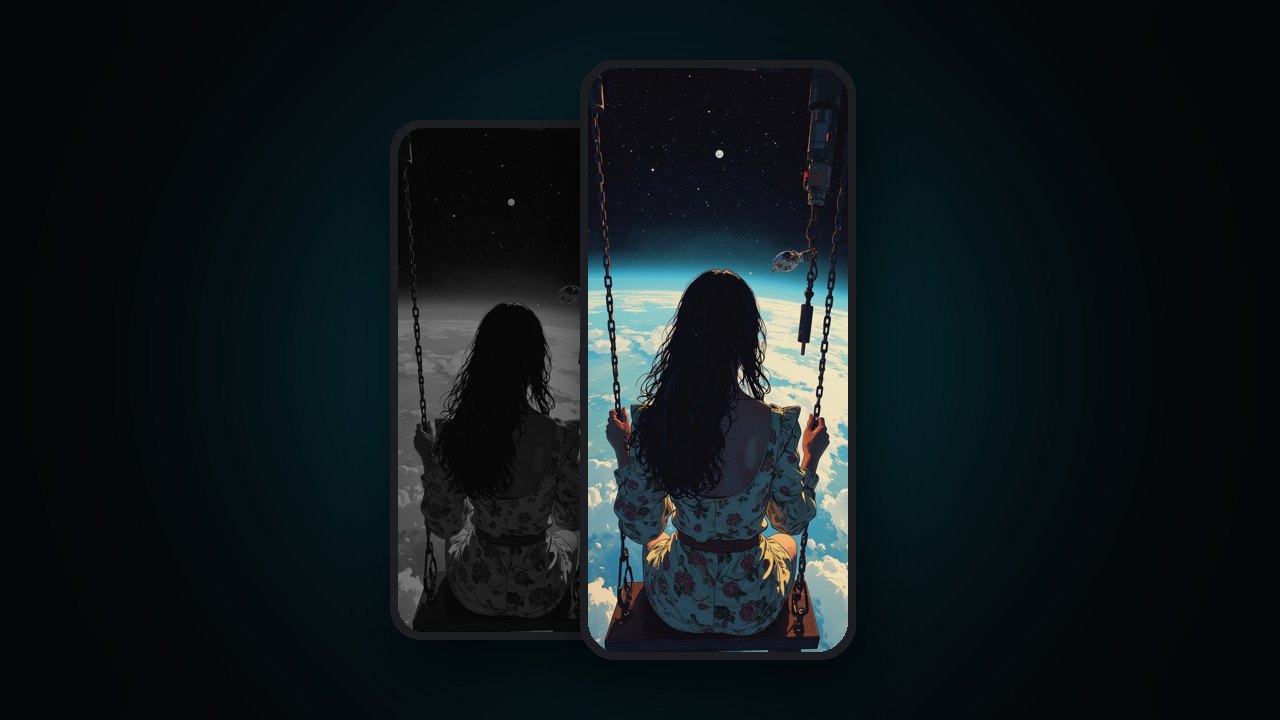
To animate a still image for your phone background, you turn the photo into a short vertical video and set that video as your wallpaper. There are two ways to get the video. By hand, you import the photo into a video editor such as CapCut, put it on a 9:16 canvas (1080 × 1920), add zoom or pan keyframes, make the last frame match the first so the clip can repeat, and export an MP4. With an AI tool, the scene itself moves: water ripples, clouds drift, lights flicker. In VisionAI you upload one JPG or PNG, say what should move if you want to, and get an HD clip of about 7–9 seconds, made to loop. Then you set it on the phone: through a video wallpaper app on Android, or as a Live Photo on iPhone.
This guide covers both methods, how to set the result on Android, iPhone and a desktop, and when each method makes sense. If you're on Android, the VisionAI app on Google Play does the whole thing on the phone.
The two methods at a glance
| By hand (video editor) | VisionAI | |
|---|---|---|
| What moves | The whole frame: zoom, pan, a filter | Things inside the photo: water, clouds, hair, lights |
| What you do | Set keyframes, size the canvas, line up the loop, export | Upload a JPG or PNG, pick an orientation, optionally describe the motion |
| Length | Whatever you set on the timeline | About 7–9 seconds, fixed |
| Loop | You match the first and last frames yourself | The engine aims for a clip that ends close to where it began; how well it loops depends on the photo |
| Desktop version | Re-edit on a 16:9 canvas | Pick Landscape 16:9 on the website |
| Cost | Your time | Credits (pricing page) |
Method 1: Animate the photo by hand in CapCut
A video editor can't make the sea move in your photo. What it can do is move the camera over the photo, which is often enough for a calm lock screen. CapCut is the common choice because it runs on phones and computers; the same steps work in most editors that have keyframes.
- Start a project with a 9:16 canvas. Create a new project, import your photo, and set the ratio to 9:16. Phones use a vertical screen, and 1080 × 1920 is the usual export size.
- Stretch the photo to the clip length you want. Drag the end of the photo on the timeline. Most people stay between 5–10 seconds: long enough to feel calm, short enough that the file stays small.
- Add keyframes. Put a keyframe at the start with the photo at normal size. Move to the middle and add a second keyframe with the photo scaled up a little or shifted sideways. A slow zoom of a few percent looks better than a big one.
- Close the loop. Add a last keyframe at the end with exactly the same scale and position as the first. When the video restarts, the jump is then as small as you can make it. Some people add a short cross-fade too.
- Add movement on top, if you like. Overlays (light leaks, rain, snow, dust) and filters give the impression that something is happening in the scene. They sit on top of the photo; nothing in the picture actually moves.
- Export. Choose 1080p and save the MP4 to your phone.
This works and costs nothing but time. Its limit is the kind of motion: the camera moves, the scene doesn't. If you want the waterfall to fall or the neon sign to flicker, you need a tool that generates motion inside the image.
Method 2: Animate the scene with VisionAI
VisionAI's engine looks at the photo and makes the scene move. You upload one image; there are no keyframes and no timeline.
- Open the creator. On a computer, go to the VisionAI creator and sign in. On Android, open the VisionAI app and go to the Create tab.
- Upload a JPG or PNG. Those are the two accepted formats. Use the original photo, not a screenshot or a small thumbnail: the motion is only as clean as the pixels it starts from.
- Pick the orientation. Portrait 9:16 for a phone. Landscape 16:9 for a monitor or laptop, available on the website only (the Android app makes portrait wallpapers).
- Say what should move (optional). A short hint such as "waves rolling in, clouds drifting" steers the motion. Leave it empty and the engine decides.
- Turn on Glowing lights if the photo has light sources. It's off by default. When it's on, lamps, neon, candles or a sunset get soft changes of light.
- Generate. You get an HD video of about 7–9 seconds. The engine aims for an ending close to the first frame so the clip can repeat; photos with simple, steady motion (water, clouds, light) loop best, and a busy scene may show a jump.
The price per wallpaper is the same in portrait and landscape. Credit packs are on the pricing page. If you need more detail for a large screen, a finished HD wallpaper can be upscaled to 4K afterwards.
For more on the creator page itself, see the live wallpaper maker.
Which photos animate well
- Clear subject, simple motion: a beach, a lake, a cloudy sky, a city at night, a candle. The engine has an obvious thing to move.
- Room above and below. For a phone, the clock sits at the top and the icons at the bottom. A photo with sky or empty space there keeps both readable.
- Sharp and well lit. Blurry or very dark photos give muddy motion.
- Few small details. Crowds, text and fine patterns are harder to animate cleanly.
Set the video as your phone background
Android
Android doesn't set an MP4 as wallpaper from the stock gallery on most phones, so you go through an app.
- With the VisionAI app, open the Gallery tab, open your wallpaper and tap Set as Wallpaper, then choose the home screen, the lock screen or both. A clip made on the website shows up in the app's gallery when you sign in with the same account. Step by step: How to Set a Live Wallpaper on Android with VisionAI.
- With a CapCut export, use a video wallpaper app to apply the MP4. Some phones, Samsung Galaxy models for example, also accept a video on the lock screen from their own wallpaper settings.
What about the cinematic wallpaper effect on Google Pixel phones? It gives a photo a 3D depth effect that shifts as you tilt the phone. It's a nice touch, but nothing in the scene moves.
iPhone
iOS doesn't take an MP4 as wallpaper. Convert the video to a Live Photo first (with a converter app, or CapCut's Live Photo export where available), then go to Settings > Wallpaper > Add New Wallpaper > Photos and pick it. The Live Photo plays on the lock screen. Pick Portrait 9:16 in VisionAI so the framing fits. Full guide: How to Set an AI Live Wallpaper on iPhone.
The desktop version: Landscape 16:9
The same photo can become your computer background too, and this is where the website matters: Landscape 16:9 is only available on the VisionAI website, not in the Android app.
- On a computer, open the VisionAI creator and upload your photo.
- Pick Landscape 16:9, add a hint if you want, and generate.
- Download the MP4. For a screen larger than 1080p, upscale it to 4K first.
- On Windows 11, the built-in settings don't play video backgrounds, so you use a wallpaper app such as Lively Wallpaper or Wallpaper Engine. The steps are in How to Set an Animated Wallpaper on Windows 11.
By hand, a desktop version means redoing the edit on a 16:9 canvas, because a vertical clip leaves black bars or gets cropped on a wide screen.
Which method should you use?
- Pick the manual method if a slow zoom is all you want, you already know a video editor, and you don't mind lining up the loop yourself.
- Pick VisionAI if you want the scene to move, you want one upload instead of an editing session, or you want the same photo as a phone wallpaper and a desktop background.
- Rather pick a ready-made one? The VisionAI Marketplace has wallpapers made by other users. Browsing it is free; you unlock a wallpaper with a short video in the Android app, or buy it once on the web.
For a wallpaper that doesn't start from a photo at all, the Flourish workshop builds an animated pattern from settings: How to Make Your Own Live Wallpaper on Android.
Frequently Asked Questions
Can I animate a photo without a video editor? Yes. In VisionAI you upload the photo, optionally describe what should move, and download an MP4. There's no timeline or keyframe to set.
What size should a phone wallpaper video be? Vertical 9:16. In an editor, export at 1080 × 1920. In VisionAI, pick Portrait 9:16.
How long is the animation? By hand, as long as you make it. In VisionAI, about 7–9 seconds; there's no length to choose.
Will the wallpaper loop without a jump? By hand, it depends on how well your first and last keyframes match. In VisionAI, the engine aims for a clip that can repeat, but it isn't guaranteed: simple, steady motion loops best.
Which image formats can I use? JPG and PNG.
Can I make a desktop version of the same photo? Yes, on the VisionAI website: pick Landscape 16:9. The Android app only makes portrait wallpapers.
Does a moving wallpaper drain the battery? A little more than a still image. Do Live Wallpapers Drain Battery? has the details.
Ready to try it with your own photo? Open the VisionAI creator on the web, or get VisionAI on Google Play to do it on your Android phone.
See also:
- How to Make Your Own Live Wallpaper on Android
- How to Set a Live Wallpaper on Android with VisionAI
- How to Set an Animated Wallpaper on Windows 11
Create your first live wallpaper
Turn a photo into a live wallpaper of about 7–9 seconds, usually ready in a few minutes.
Get started