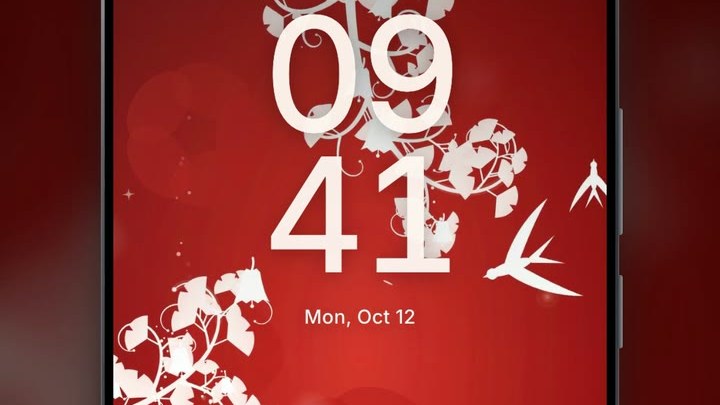
Most guides on how to make your own live wallpaper on Android assume you have a photo to animate. The Flourish workshop of VisionAI works without one. You build an animated pattern out of settings: a shape for the vines, a color theme, a flower, a creature and a few motion effects. The preview moves while you change things, and you pay 1 credit only when you render. On your phone, the pattern draws itself on the screen, then keeps moving in a short loop.
The workshop is in the VisionAI app: get VisionAI on Google Play.

What is a Flourish?
A Flourish is a live wallpaper made from a recipe, the list of settings you pick in the workshop. There is no photo to upload and nothing to describe in a prompt.
The video is a portrait MP4 at 1080 × 1920. It plays in two parts: first the creation, where stems grow, leaves unfold and flowers open, then a loop where wind, sparkles or fireflies keep the pattern moving. A render is ready about a minute after you press the button and costs 1 credit.
Before you start
- A VisionAI account with credits. The Render button shows the price before you tap it. Credit packs are listed on the pricing page; in the Android app, Google Play shows them in your local currency.
- VisionAI 1.3.3 or later to play a Flourish as your wallpaper. Older versions of the app can't play one. If yours is older, update it from Google Play first.
- The workshop itself. In the app, open the Create tab and tap Flourish wallpaper. On a computer, open the Flourish workshop and sign in with the same account. A Flourish you render in the browser shows up in the app's gallery too.
Step 1: Start from a preset
On a phone, the workshop opens with three tabs under the preview: Presets, Style and Effects. Presets is the quickest way in. There are nine:
Aurora ivy, Sunset willow, Cherry night, Ocean lotus, Black and gold peony, Neon twinkle, Pastel garden, Peony in the wind, and Jade and gold.
Tap one and the preview redraws. If none of them is close to what you want, Surprise picks a random recipe; tap it until something catches your eye. Reset goes back to the default recipe.
Step 2: Shape the pattern
The Style tab holds the four settings that change the look the most:
| Setting | Choices |
|---|---|
| Skeleton | Balanced, Arch, Crown, Spiral, Cascade, Mirrored corners |
| Theme | A list of named color themes (Aurora, Lavender, Sunset, Midnight neon, Black gold…), or your own colors |
| Flower | Match the theme (the default), Blossom, Lily, Daisy, Rose, Tulip, Bell, Lotus, Peony, Cherry, Aster, Mixed, or None |
| Creature | Butterfly, Dragonfly, Hummingbird, Moth, Swallow, or None |
The skeleton is how the five or six main stems are laid out on the screen. Every skeleton fills the screen evenly, so pick the shape you like.
Pick the colors with the clock in mind. The pastel lavender wallpaper below is soft and pretty, but the white clock on a light background is hard to read on a lock screen. A light background suits a home screen better, where the clock is not in the way. For the lock screen, a dark or saturated background keeps the time clear.

The Advanced button opens the rest of the settings:
- Mirror: flips the skeleton left to right.
- Stroke style: Match the theme (the default), Floral, Swirls, Baroque, Ivy, Fern, Art nouveau, Eucalyptus or Willow.
- Leaf, Leaf size and Density: the leaf shape and how full the vines look.
- Background shape: a solid color, a vertical or diagonal gradient, a glow in the center, or a halo at the top or bottom.
- Pattern and Pattern strength: a second pattern behind the vines (damask, dots, halftone, stripes, rings, ghost flowers, blurred bubbles, diamonds, waves or little stars) and how visible it is.
- Flower size, Flower count, Creature count and Creature size.
- Seed: a number. With the same settings, a new seed grows the vines differently (angles, branches, where the leaves sit), so you can keep a look you like and try other versions of it.
On a computer, the same settings are grouped into sections (Structure, Colors and background, Flowers, Creature, Loop effects, Seed), and everything is visible at once.
Step 3: Add movement
The Effects tab has eight sliders. They control what keeps moving once the pattern has finished drawing itself:
- Wind: a gust crosses the screen and the stems sway.
- Twinkle: little stars light up on and around the stems.
- Contour light: a line of light climbs each stem from base to tip.
- Breathing flowers: the flowers open and close once per loop.
- Color wave: a band of color rolls along the main stems.
- Petals in the wind: petals spin across the screen.
- Fireflies: glowing dots float and light up one after another.
- Glitter trail: glitter spirals up from the bottom right corner to the top.
Two or three effects are usually enough. With every slider at the top, the screen gets busy, and a busy wallpaper makes your icons and the clock harder to read.
To watch the drawing part again after a change, use Replay creation. On a computer you can also pause the preview and drag the position slider to check a single moment.

Step 4: Render it
When the preview looks right, tap Render, 1 credit at the bottom of the screen. The render takes about a minute. If your balance is too low, VisionAI asks you to top up before it starts; the recipe you built is kept while you buy credits.
When it's done, the result page shows your wallpaper. On a computer you can download the MP4 from there.
Step 5: Set it as your Android wallpaper
- In the VisionAI app, open the Gallery tab.
- Open your Flourish.
- Tap Set as Wallpaper.
- Confirm in Android's wallpaper screen. Depending on your phone, you can choose the home screen, the lock screen, or both.
Each time your screen turns on, the pattern draws itself again before settling into its loop. If the wallpaper doesn't play, check the app version: a Flourish needs VisionAI 1.3.3 or later.
For the full walkthrough of the Android wallpaper settings, see How to Set a Live Wallpaper on Android with VisionAI.

Change it later
In your history, Edit in workshop reopens a Flourish with its recipe. Change the theme, the effects or the seed, then render again. Each new render costs 1 credit, and the earlier version stays in your gallery.
Rather pick a ready-made one?
The Flourish category on the Marketplace collects Flourish wallpapers you can get without designing one yourself. Browsing it is free. In the app, the category appears from version 1.3.3, and the first card of the category opens the workshop if you change your mind.
Flourish or an animated photo?
VisionAI has two ways to make your own live wallpaper:
| Flourish | Animate a photo | |
|---|---|---|
| Starts from | Settings in the workshop | One of your photos (JPG or PNG) |
| What moves | Vines, flowers, creatures and effects you choose | The scene in your photo, animated by the VisionAI engine |
| Price | 1 credit per render | 10 credits per wallpaper (about 7–9 seconds) |
If you'd rather bring your own photo to life, animate it in the live wallpaper maker, or follow the step-by-step guide How to Create AI Animated Wallpapers from Any Image.
Frequently Asked Questions
Do I need a photo to make a Flourish? No. Everything comes from the settings in the workshop.
How much does it cost? 1 credit per render. Trying settings in the preview doesn't use credits. Credit packs are on the pricing page.
My Flourish doesn't play as a wallpaper. Why? Your VisionAI app is probably older than 1.3.3. Update it from Google Play, then set the wallpaper again from the Gallery tab.
Can I get exactly the same wallpaper again? Yes. Same settings and same seed give the same pattern. Use Edit in workshop from your history to reopen a recipe.
Does a live wallpaper drain the battery? A little more than a still image. Do Live Wallpapers Drain Battery? Live vs Static Compared goes into the details.
To start, install VisionAI from Google Play, open the Create tab and tap Flourish wallpaper.
See also:
- How to Set a Live Wallpaper on Android with VisionAI
- How to Create AI Animated Wallpapers from Any Image
- Do Live Wallpapers Drain Battery? Live vs Static Compared
Get VisionAI on Android
Animate a photo and set it as your live wallpaper, all from your phone.